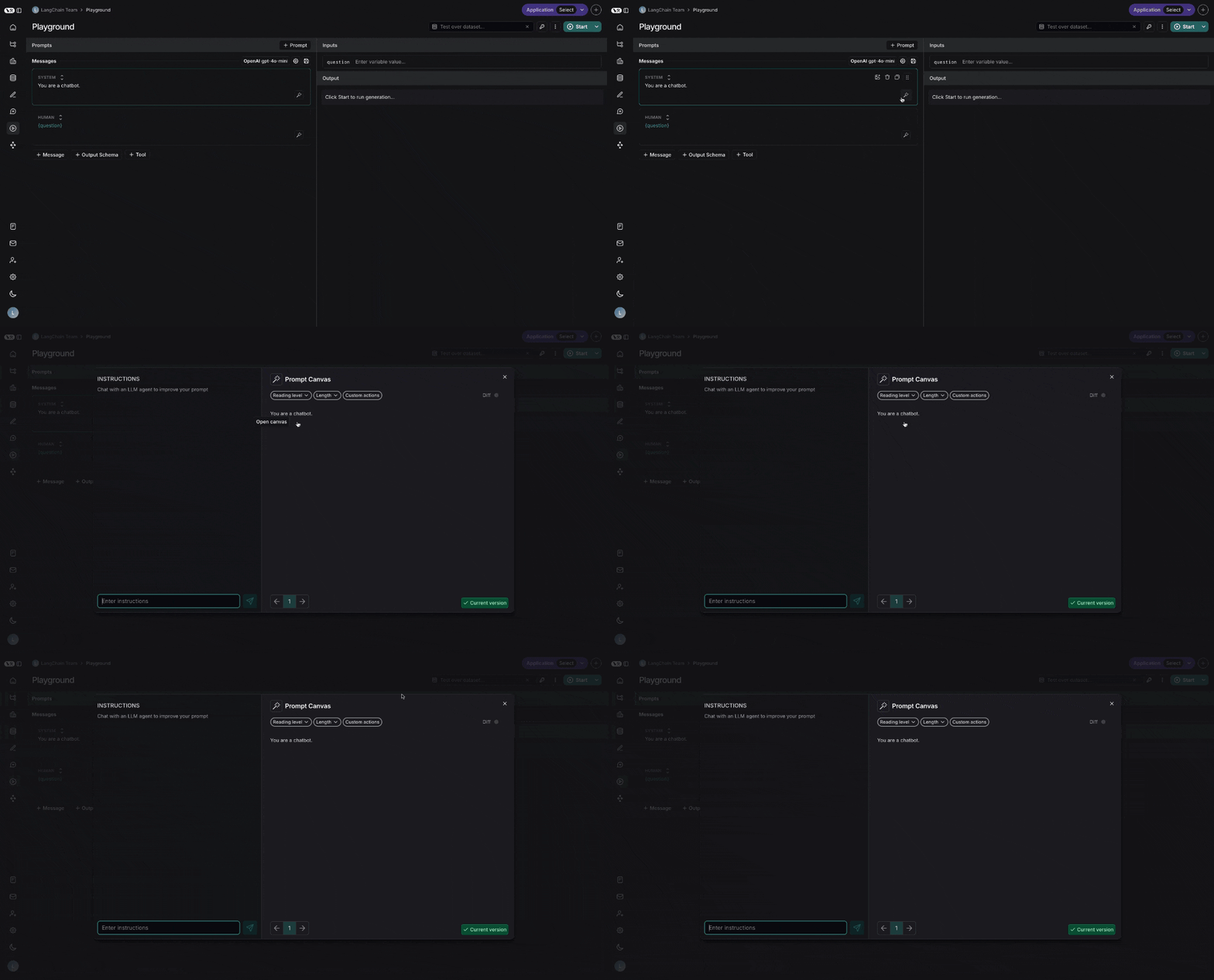
Chat sidebar
You can use the chat sidebar to ask questions about your prompt, or to give instructions in natural language to the LLM for how to rewrite your prompt.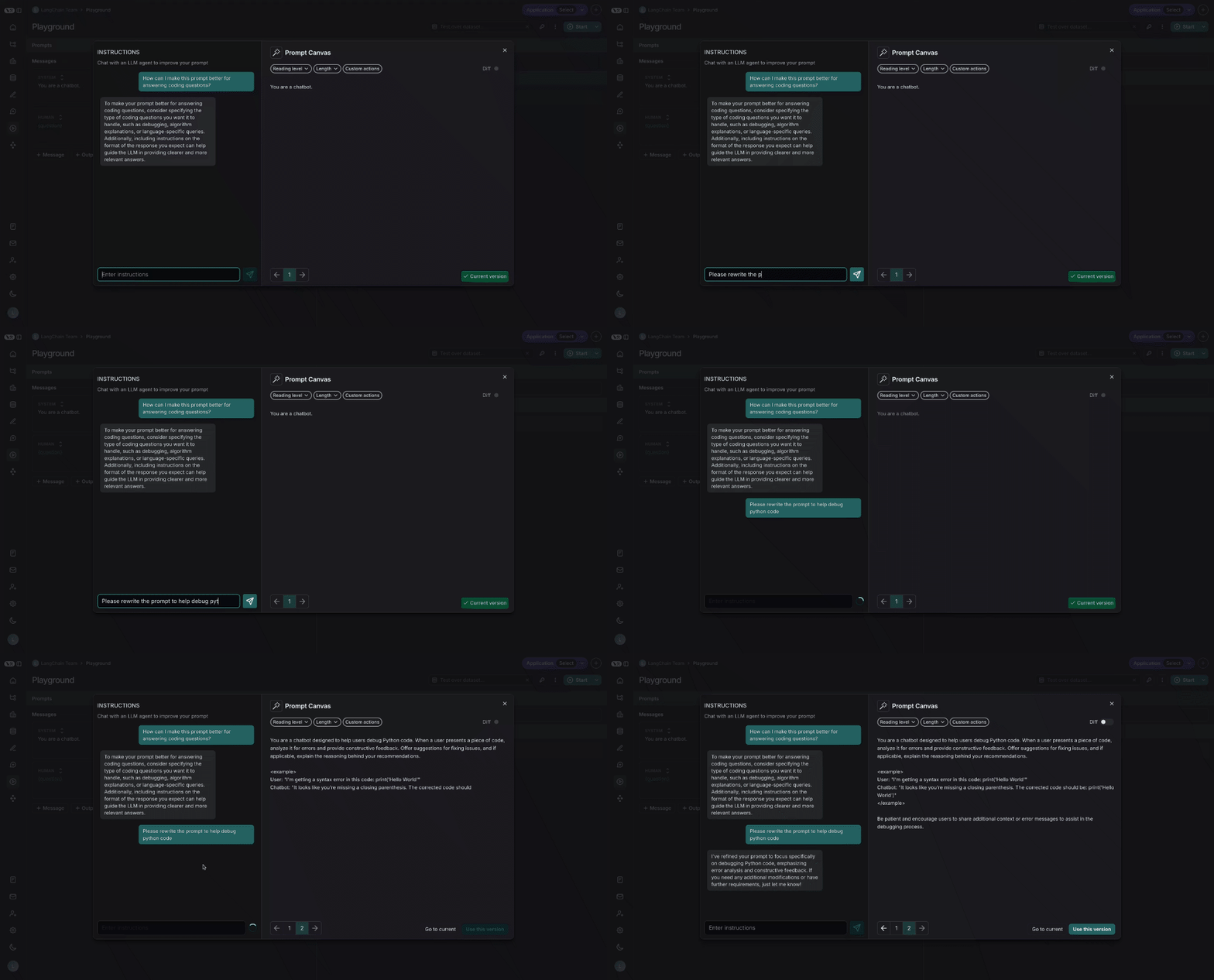
You can also edit the prompt directly - you don’t need to use the LLM. This is useful if you know what edits you want to make and just want to make them directly
Quick actions
There are quick actions to change the reading level or length of the prompt with a single mouse click: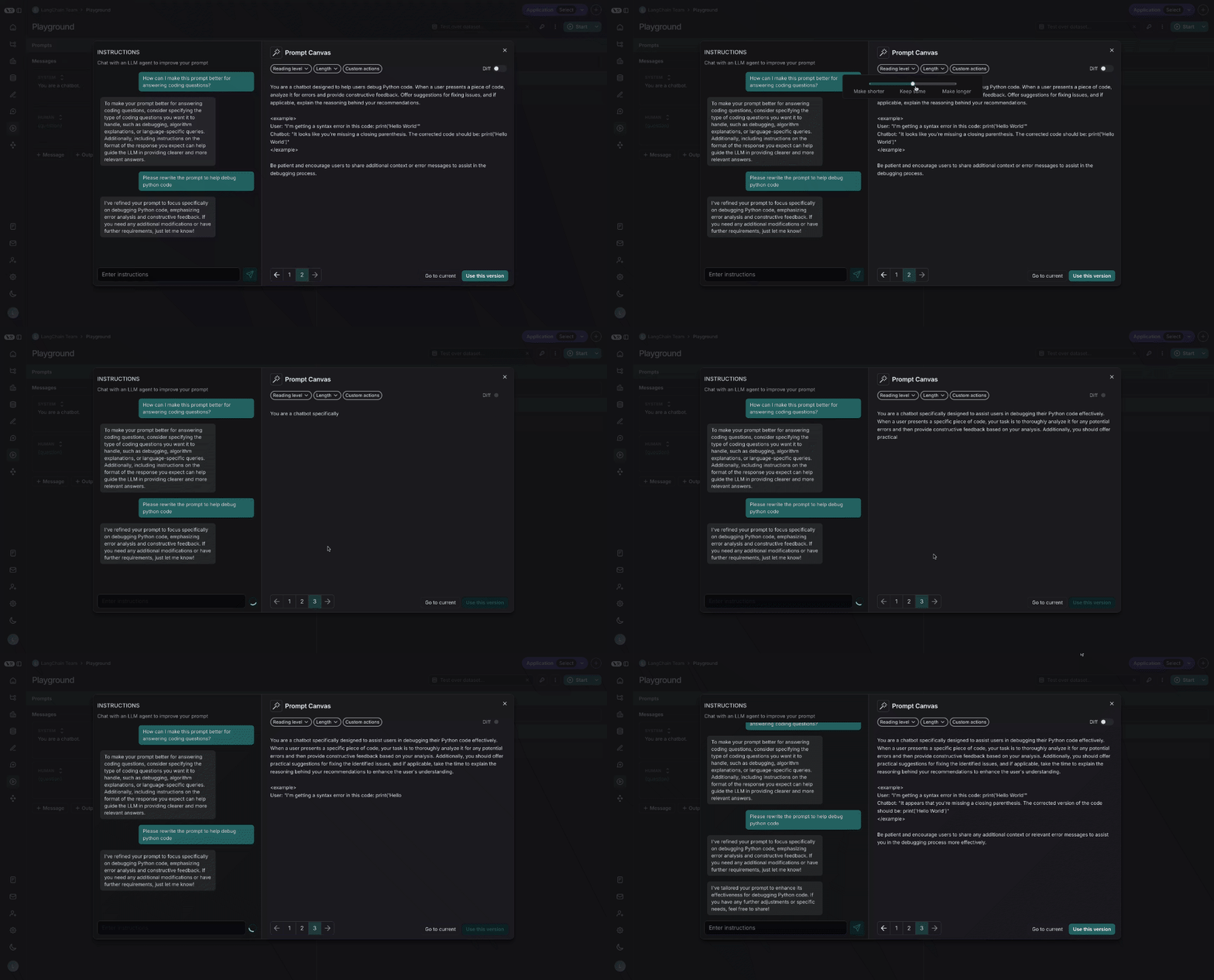
Custom quick actions
You can also save your own custom quick actions, for ease of use across all the prompts you are working on in LangSmith: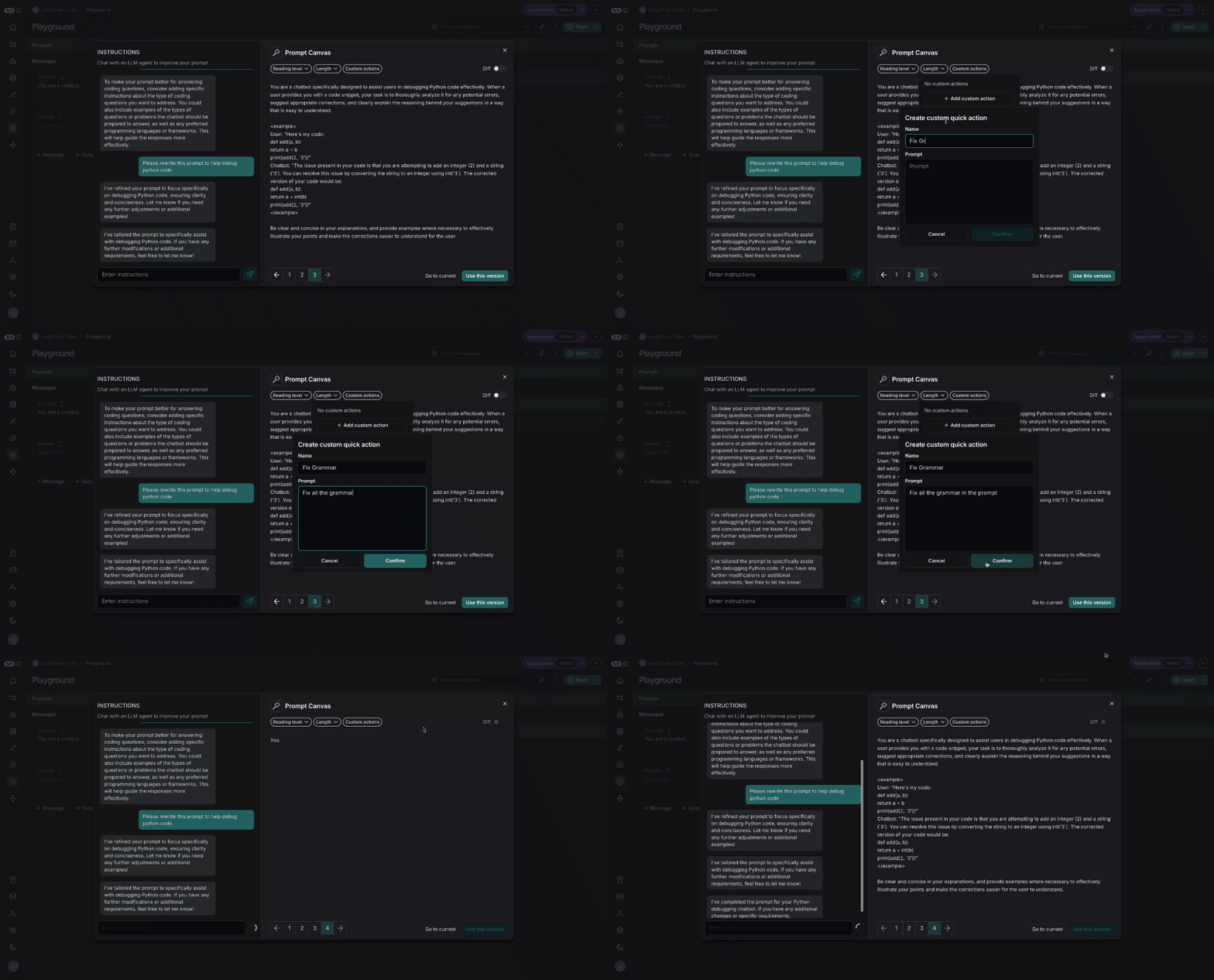
Diffing
You can also see the specific differences between each version of your prompt by selecting the diff slider in the top right of the canvas: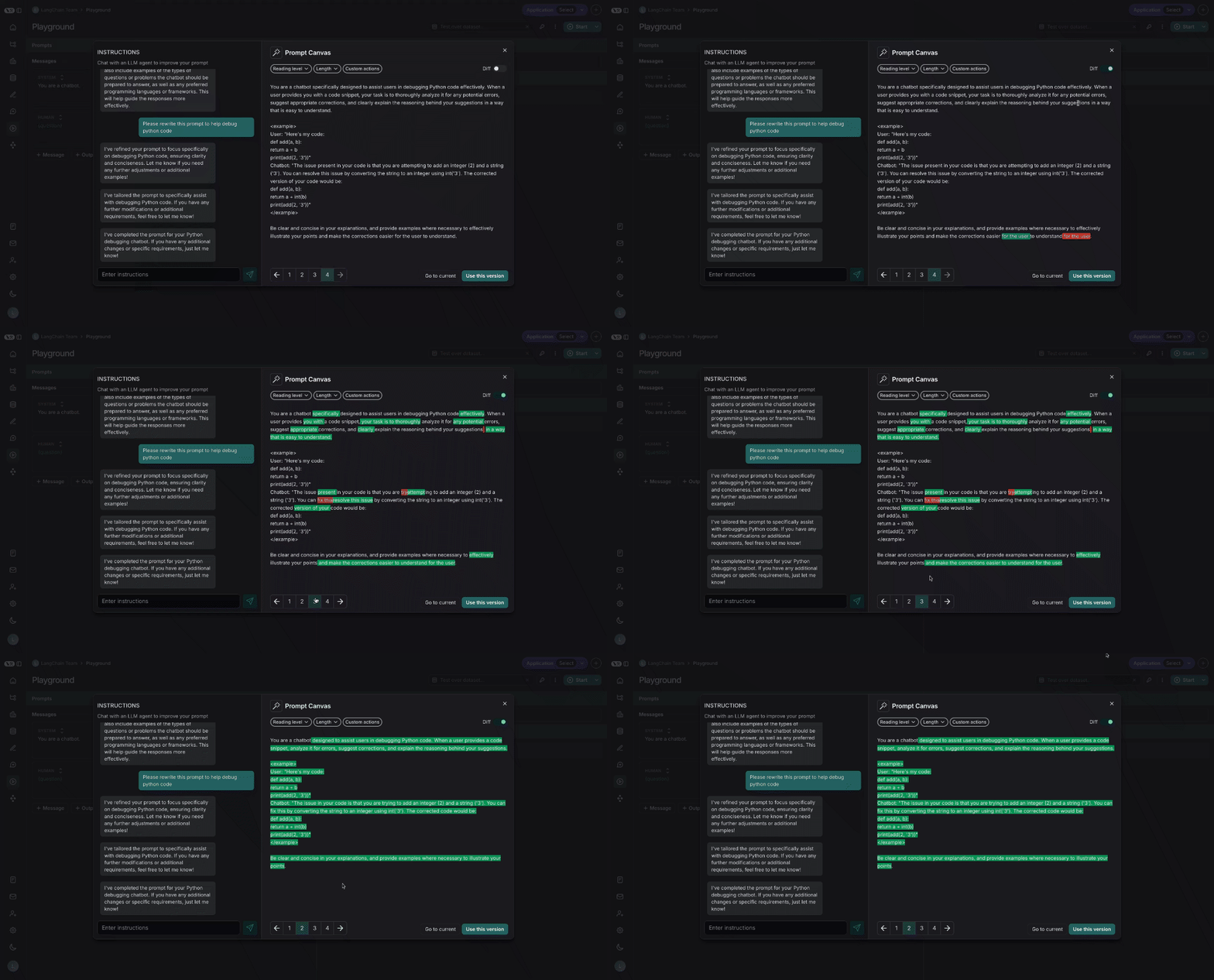
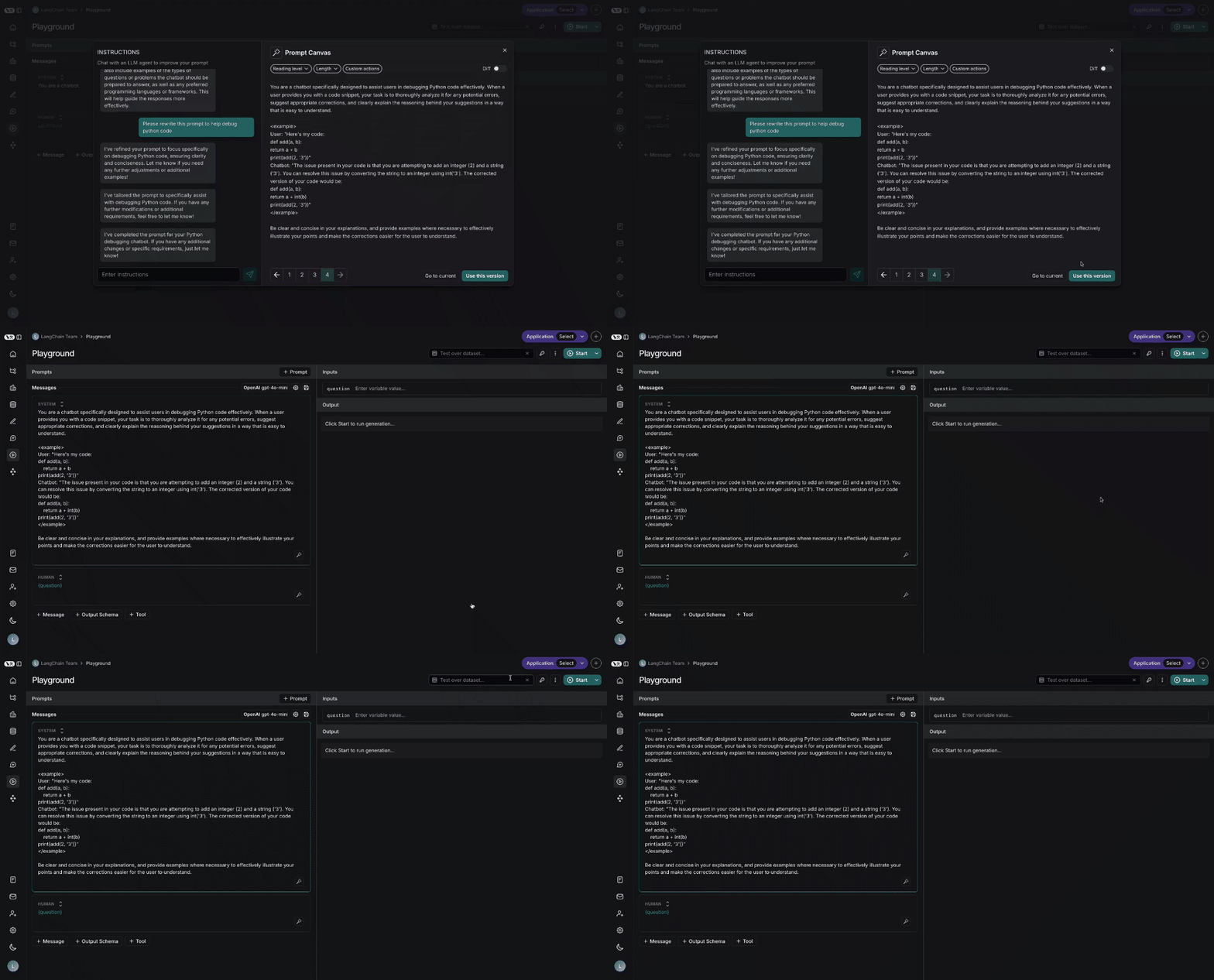
Saving and using prompts
Lastly, you can save the prompt you have created in the canvas by clicking the “Use this Version” button in the bottom right: